App settings
The Settings section of CareFlow Kids provides tools for accessing help and troubleshooting the application.
These settings do not change patient medical data, but they allow clinicians to quickly access documentation and share technical information if support is needed.
Accessing settings
Settings can be accessed from the clinician menu in the top-right corner of the application.
From this menu, clinicians can:
- modify their profile
- switch clinician accounts
- access support tools
- log out of the application
Quick help access
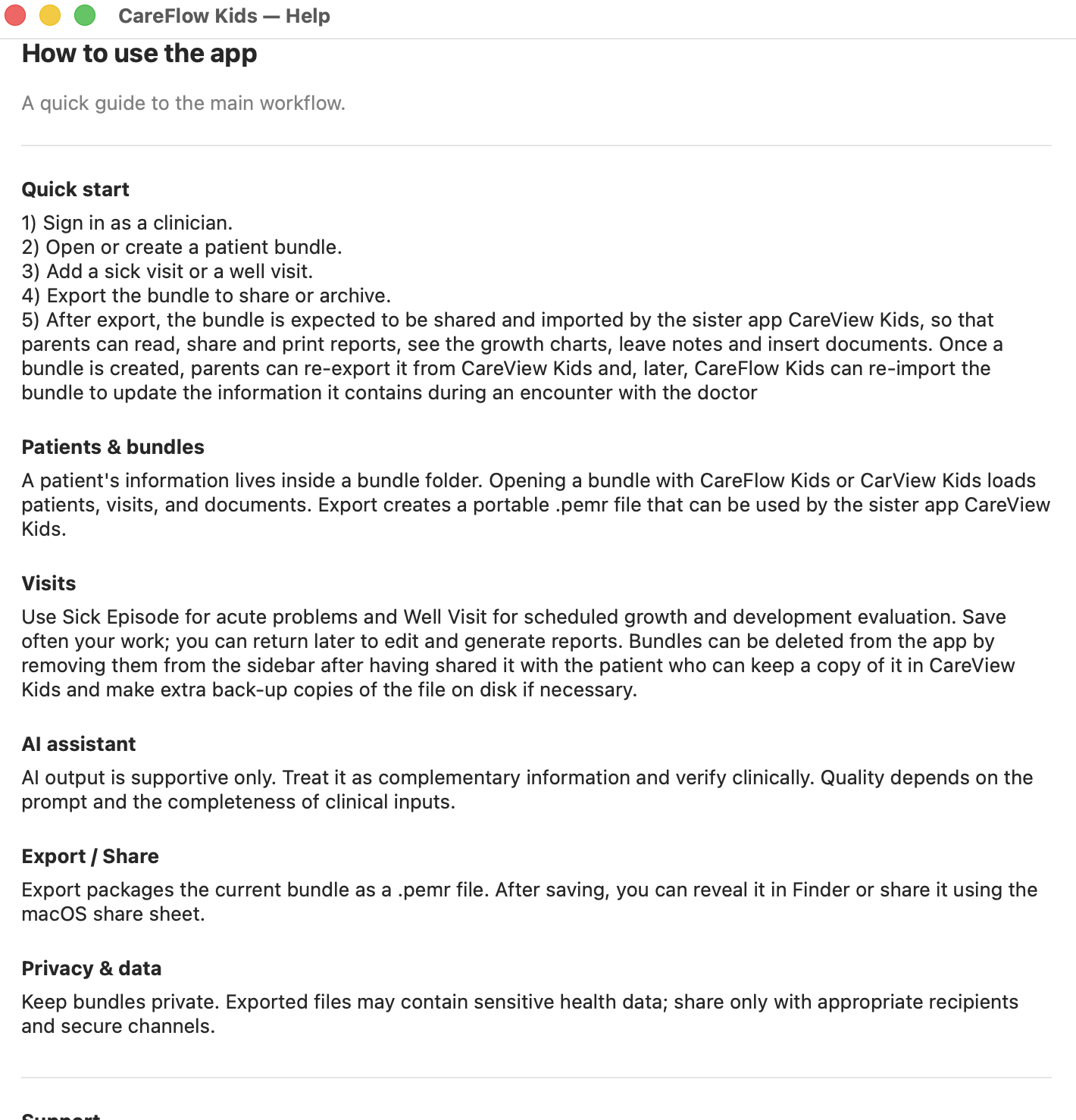
CareFlow Kids includes a built-in help viewer that provides guidance on how to use the application.
This help system explains:
- the typical clinical workflow
- how patient bundles work
- how visits and reports are created
- how bundles are exported and shared
The help window can be opened directly from the application menu and provides a quick reference for clinicians.
Support log
CareFlow Kids can generate a support log to help diagnose technical problems.
The support log may include technical information such as:
- application activity
- error messages
- diagnostic information useful for troubleshooting
Exporting the support log
If technical support is required, the clinician can export the support log from the menu:
- Open the clinician menu.
- Select Export support log.
- Share the generated file with the support team if requested.
This helps developers or technical support understand and resolve issues more quickly.
Test error (temporary tool)
In some development versions of the application, a test error trigger may be available.
This tool intentionally generates a test error to verify that logging and diagnostic systems are working correctly.
This feature is mainly intended for development and debugging.
Privacy note
Support logs may contain technical diagnostic information about the application session.
They should only be shared with trusted technical support contacts.