Recording vitals
This page explains how to record vital signs during a sick visit in CareFlow Kids.
Vital signs provide objective clinical information about the child's condition and are automatically evaluated against age‑appropriate reference ranges.
When vitals can be recorded
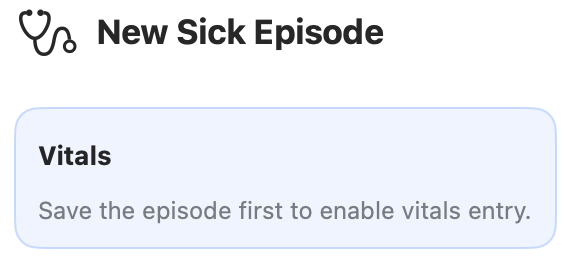
Vitals can only be recorded after the episode has been saved once.
When the episode is first created, the vitals section shows a message indicating that the visit must be saved before vitals can be entered.
Saving the episode initializes the data structure needed to store vital measurements.
Typical vital signs recorded
Common measurements include:
- Weight
- Height / Length
- Head circumference
- Temperature
- Heart rate (HR)
- Respiratory rate (RR)
- SpO₂
- Blood pressure (optional)
These values are stored in the patient record and may be used in:
- growth charts
- clinical evaluation
- report generation
Automatic abnormal value detection
CareFlow Kids automatically evaluates vital signs against age‑specific reference ranges.
If a value falls outside the expected range:
- the value is flagged as abnormal
- a corresponding clinical signal may be generated
- the abnormality may appear in the problem listing
This helps clinicians quickly identify important physiological abnormalities.
Multiple measurements during the same visit
Vital signs may be recorded multiple times during a single episode.
This is useful when:
- monitoring a child during observation
- repeating a measurement to confirm accuracy
- recording vitals after treatment (for example after antipyretics)
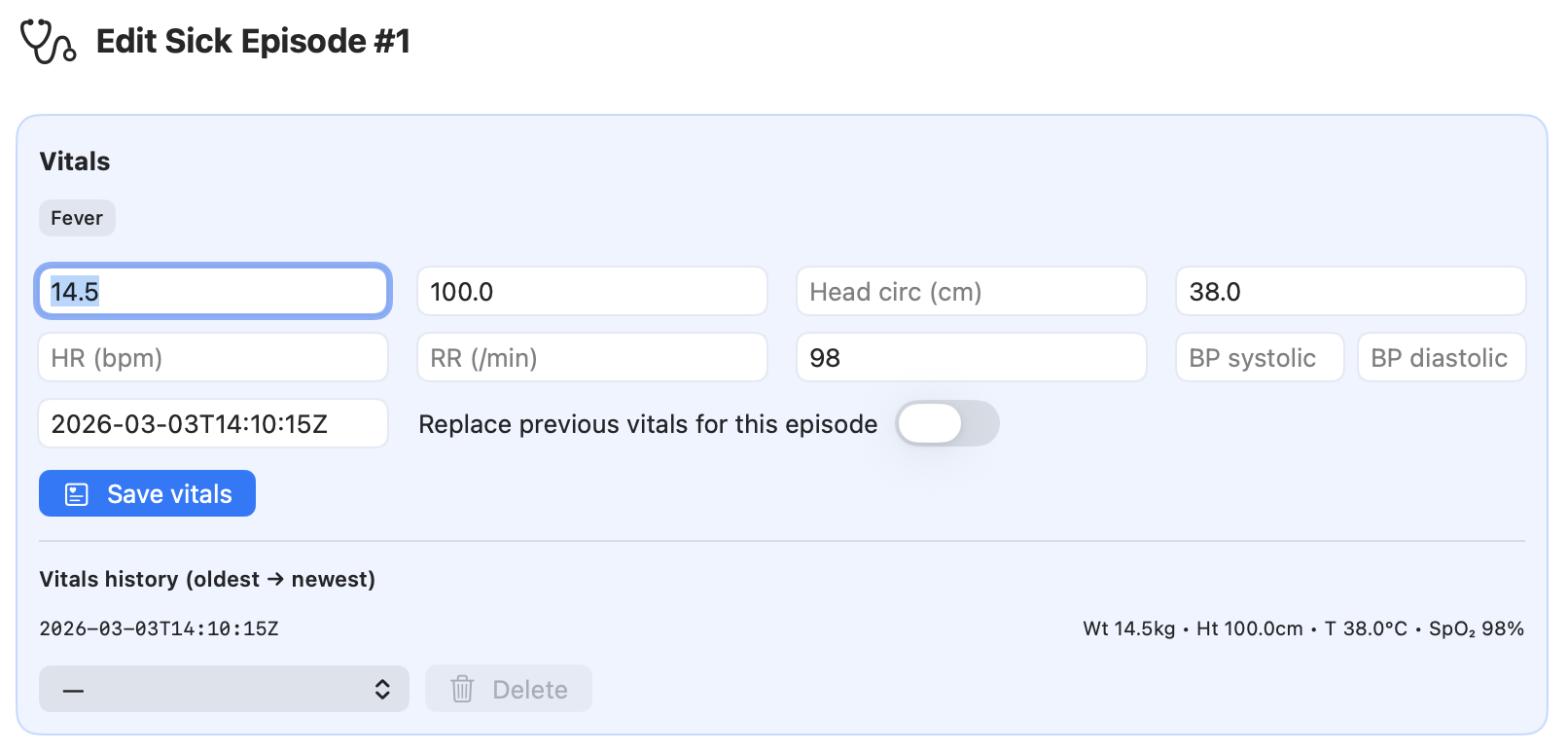
Each measurement is stored with a timestamp in the vitals history.
Replacing previous measurements
When recording new vitals, the clinician can choose whether to:
- add a new measurement, or
- replace the previous measurement for this episode
Replacing a measurement updates the value used for the current episode while preserving the clinical workflow.
Vitals history
The vitals panel displays a history of measurements for the episode.
Entries are displayed from oldest to most recent, allowing the clinician to quickly review changes over time.
Accessing vitals from the main dashboard
All vitals recorded for the patient can also be accessed from the main dashboard.
To view the full vitals history:
- Open the Measures section in the dashboard.
- Click Vitals.
This view displays the complete history of vitals recorded for the patient, across all visits.
This allows the clinician to quickly review:
- past measurements
- physiological trends
- previously recorded abnormal values
Saving vitals
After entering measurements:
- Click Save vitals.
The values will then appear in the episode record and may influence:
- problem listing
- guideline signals
- AI clinical suggestions