Physical examination
This page explains how to record the physical examination findings during a sick visit in CareFlow Kids.
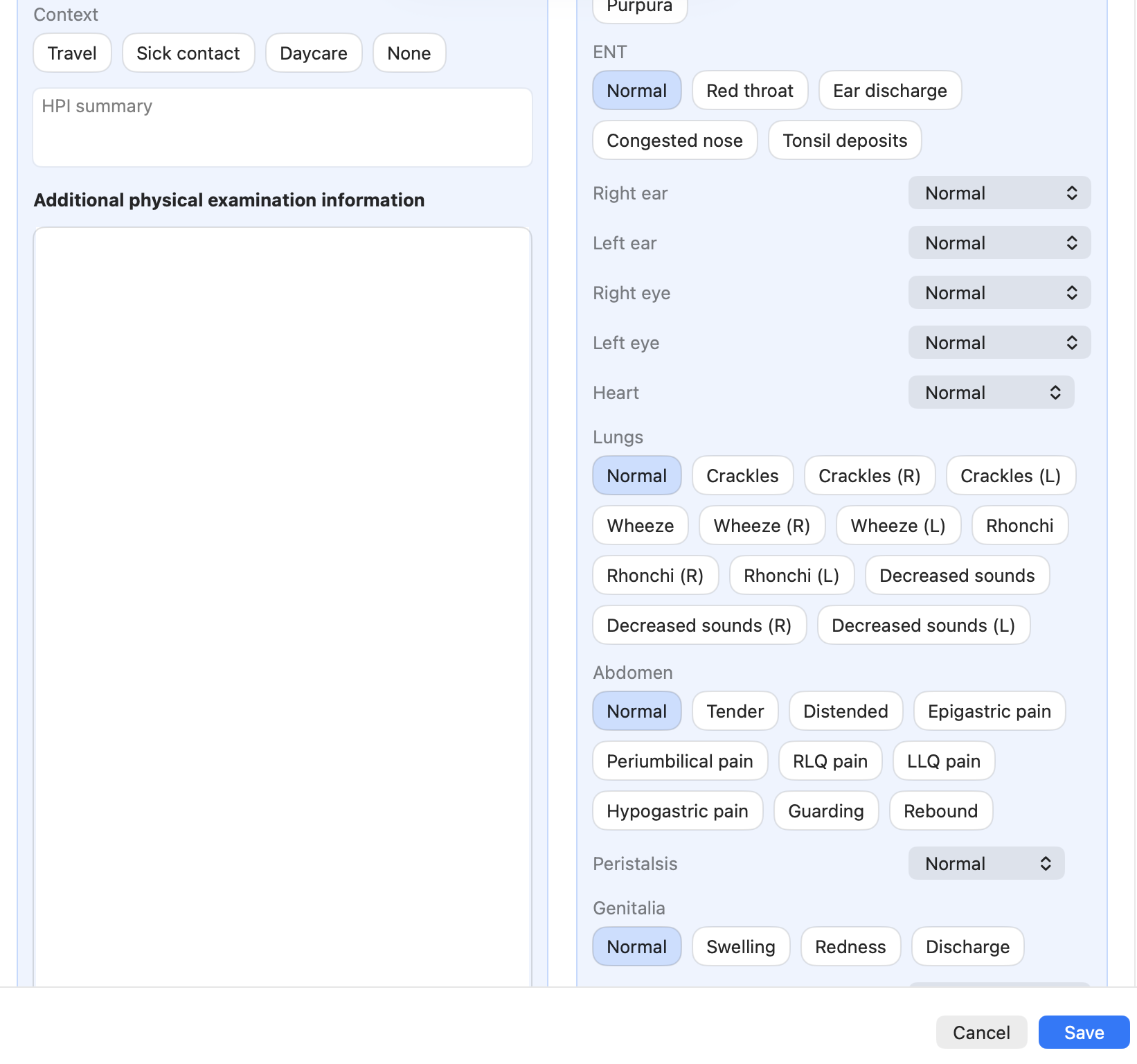
The examination section allows clinicians to document structured clinical findings across multiple organ systems.
Physical examination mode
At the beginning of the examination section, the clinician must select how the physical examination (PE) was performed.
Available options are:
- In‑person examination
- Remote examination
- Not assessed
The selected mode indicates how the clinical findings were obtained and may appear in reports.
Telemedicine visits
When the visit is created in telemedicine mode, the PE mode is restricted to:
- Remote examination
- Not assessed
This reflects the fact that a full in‑person examination cannot be performed during a remote consultation.
Structured examination approach
The examination form is organized by clinical systems, allowing the consultation to follow a natural workflow.
Typical sections include:
- general appearance
- hydration
- hemodynamic status
- respiratory effort
- skin
- ENT (ear, nose, throat)
- lungs
- heart
- abdomen
- neurologic status
- lymph nodes
Each system contains predefined clinical findings that can be selected quickly.
Selecting examination findings
Most examination findings are recorded by clicking predefined clinical tags.
Examples include:
- "Normal"
- "Crackles"
- "Wheezing"
- "Rash"
- "Abdominal tenderness"
Selecting structured findings ensures that clinical data remains consistent and machine-readable.
Multiple findings in the same system
Several findings can be selected within the same examination section.
For example, in the lung examination:
- crackles
- wheezing
- decreased breath sounds
This allows precise documentation of complex clinical presentations.
Using "Normal"
Most systems include a Normal, often the default option.
Selecting "Normal" indicates that no abnormal findings were detected in that system.
If abnormal findings are selected, the "Normal" option should usually not be selected.
Free text examination notes
Additional examination details can be recorded in the free text clinical notes field.
This allows clinicians to:
- clarify unusual findings
- describe nuances not covered by structured tags
- summarize the examination when necessary
Structured findings and free text can be used together.
How examination findings are used
Recorded findings contribute to several automated processes in CareFlow Kids:
Problem listing
Selected symptoms and examination findings can be summarized automatically in the problem listing.
Guideline evaluation
Clinical rules can analyze findings and generate guideline flags.
AI clinical support
The AI assistant may use examination findings to provide clinical suggestions or differential diagnoses.
Editing examination findings
Examination findings can be modified at any time and problem listing update while the episode form remains open and when reopening an episode.
Simply:
- Select or deselect the appropriate findings.
- Click Save to update the episode.
Addendum
An Addendum can be used to record additional information about the episode after the initial consultation has been completed.
This is useful when:
- follow‑up information becomes available
- laboratory or imaging results are received later
- the clinician needs to clarify or complete the documentation
To add an addendum:
- Reopen the episode.
- Navigate to the Addendum section at the bottom of the form.
- Enter the additional information.
- Save the episode.
The addendum becomes part of the episode record while preserving the original clinical documentation.